
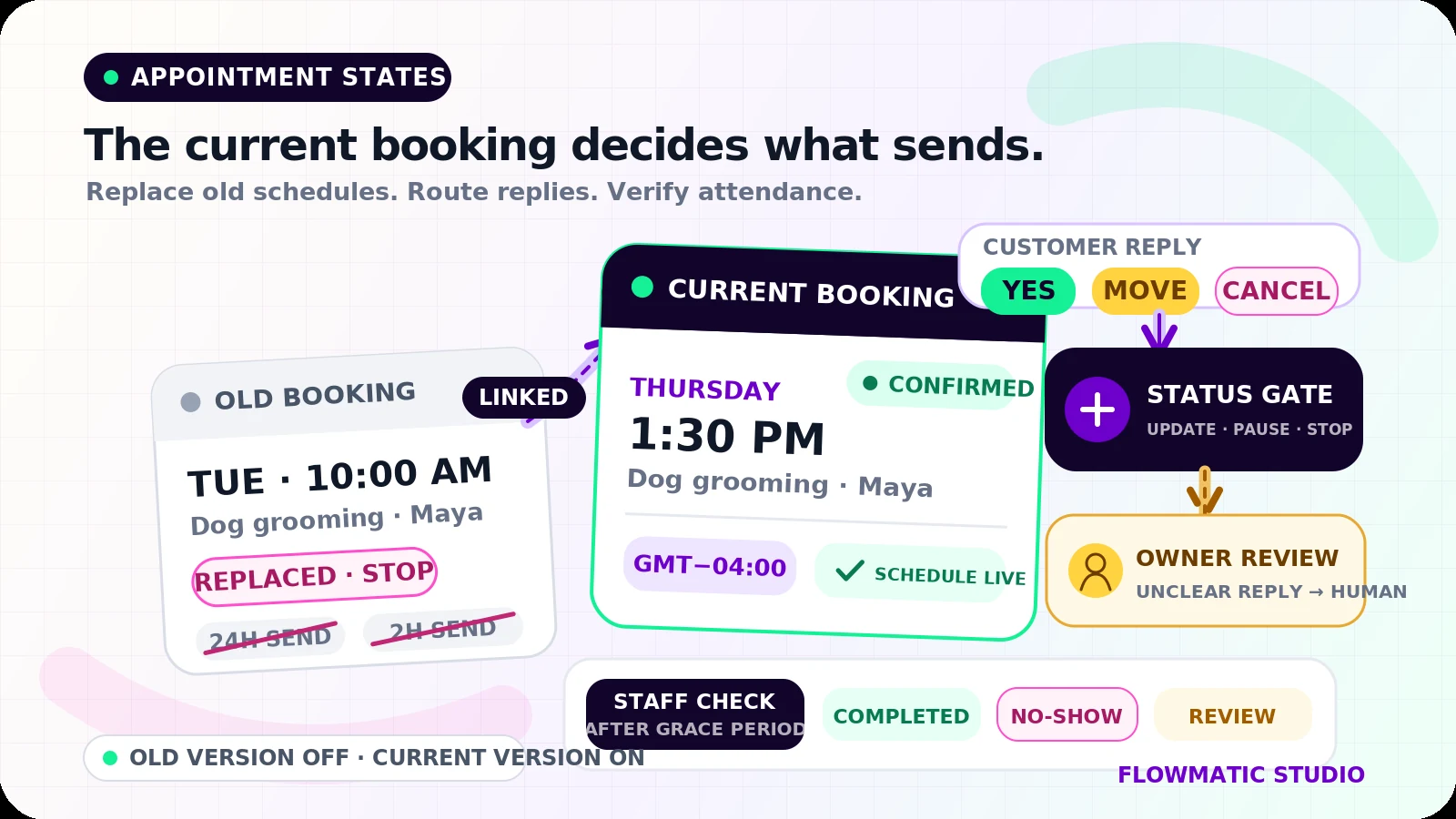
An appointment reminder should reflect the booking that exists now, not the booking that existed when the sequence was scheduled.
Customers move appointments, reply with questions, cancel through separate links, and speak to staff by phone. A blind timer can still send the old time. Useful appointment reminder automation checks the current booking, replaces outdated schedules, and stops when a person needs to take over.
This workflow starts after an appointment is booked. It does not cover capturing a new inquiry, recovering a missed call, following up on a quote, collecting an invoice, or onboarding a client.
Give every appointment a working status
The booking calendar should remain the source of truth for the date, time, duration, service, location, and assigned staff member. Add only the operating fields needed for communication.
A small status model might include:
Booked: appointment created, confirmation not yet receivedConfirmed: customer explicitly confirmedReply received: reminders paused for owner reviewReschedule requested: old slot held or released under the business's policyCanceled: appointment closed and future messages stoppedCompleted: service deliveredNo-show: marked by staff after the arrival windowClosed: follow-up finished
Store the booking ID, current version, time zone, contact channel, communication preference, reminder history, latest reply, owner, next action, and stop reason. Google Calendar event records, for example, expose an event ID, status, start and end values, time zones, and attendee response status.[1] Map only the fields your scheduler provides.
Confirm the details immediately
Send a booking confirmation as soon as the appointment is created. Include the business name, service, local date and time, location or meeting link, preparation details, and clear ways to confirm, reschedule, or cancel.
Do not mark the appointment Confirmed just because a message was delivered. Delivery is not agreement to attend.
A text might say:
Your grooming appointment with Poppy & Co. is Tuesday, September 29 at 10:00 a.m. Reply YES to confirm, MOVE to request another time, or CANCEL to cancel. Need help? Reply with your question.
Keep the wording short enough that the three choices are easy to find.
Schedule from the appointment's time zone
Save the source date, time, and named time zone. Render the message in the customer's expected local time, and show the zone when people may be in different regions.
Calculate reminders from the current appointment version. One message a day or two before and a shorter same-day reminder can be a starting point, but timing should fit the service.
Re-check the date, time zone, status, version, and contact preference immediately before each send. If any required value is missing or the calendar cannot be reached, do not guess. Pause the message and create an owner task.
Turn replies into state changes
An incoming reply should reach the appointment record, not sit unnoticed in a separate inbox. Messaging providers can send inbound messages to a webhook, and status callbacks can report outbound delivery changes.[3]
Handle clear replies first:
YESchangesBookedtoConfirmedand cancels any confirmation chase.MOVEchanges the status toReschedule requested, pauses reminders, and sends the approved scheduling link or creates an owner task.CANCELfollows the business's cancellation policy, closes the appointment, and stops future reminders.- Any question or uncertain reply changes the status to
Reply receivedand goes to a named owner with the full message.
Match replies using the channel, customer, booking ID, and conversation history. One phone number may relate to several people or bookings. When the match is uncertain, ask a person to resolve it.
Treat rescheduling as a replacement
A rescheduled appointment needs a new communication schedule. Close the old reminder plan, link it to the replacement booking, and calculate new sends from the replacement time.
Calendly documents that a reschedule triggers both invitee.created and invitee.canceled, while its payload identifies whether the cancellation was part of a reschedule.[2] Treating those as unrelated can leave old reminders active or send messages in the wrong order.
Give every planned send a unique key such as booking ID + version + reminder stage. Check that key before sending and record the attempt once. A retried job should not send a second reminder.
Define stop conditions before launch
Before every message, stop the workflow when the appointment is canceled, completed, replaced, already in progress, assigned to human review, outside the approved communication window, missing required consent, or attached to an unresolved sync error.
A customer reply should pause reminders unless it maps safely to a defined action. Staff also need a visible pause control.
Do not let a calendar deletion silently disappear. Record the final state and stop reason so the owner can distinguish a cancellation from a failed sync.
Follow up on no-shows only after staff verification
Time passing does not prove a no-show. A customer may have arrived under a different name, checked in late, joined through another link, or spoken with a staff member.
Wait until the appointment ends plus a reasonable grace period, then ask staff to mark Completed, No-show, or Needs review. Only a verified No-show should start the follow-up.
Keep that message neutral. Acknowledge the missed appointment, provide the approved rebooking option, state any applicable policy without inventing a fee, and offer a human contact. Send a limited follow-up, then close it or assign an owner.
Example: a two-chair dog grooming studio
Poppy & Co. books Maya and her dog for Tuesday at 10:00 a.m. Maya replies YES to the confirmation, so the record becomes Confirmed.
On Monday, Maya asks to move the appointment. Tuesday's reminder pauses while the receptionist books Thursday at 1:30 p.m. The old booking becomes Replaced, its messages are canceled, and the linked replacement gets a fresh schedule.
If Maya does not arrive on Thursday, the clock alone sends nothing. After the grace period, the groomer marks the appointment No-show. One neutral rebooking message goes out, and the record closes if there is no response after the studio's chosen follow-up limit.
Test collisions, not just the happy path
Test a confirmation seconds before a reminder, a reply from an ambiguous phone number, a reschedule across a time-zone or daylight-saving boundary, cancellation in the calendar, duplicate webhooks, an old event canceled during rescheduling, a failed message, a calendar outage, a staff pause, a late arrival, and a no-show corrected to completed.
For each case, verify the displayed time, appointment version, message count, current status, owner, next action, and stop reason. Run the first live appointments with human review enabled.
If reminders still depend on calendar alerts and memory, request a Flowmatic workflow audit. We will map the booking states, reply paths, rescheduling logic, owner exceptions, and stop rules for a dependable first version.
Sources
- [1] https://developers.google.com/calendar/api/v3/reference/events — Google Calendar API Events resource
- [2] https://developer.calendly.com/docs/api-guides/trigger-automations-with-other-apps-when-invitees-schedule-or-cancel-events — Calendly: Automate Your Process
- [3] https://www.twilio.com/docs/usage/webhooks/messaging-webhooks — Twilio Messaging Webhooks
Make appointment follow-up dependable
Map the booking states, reply paths, exceptions, and stop rules
Flowmatic can map your calendar, reminder timing, rescheduling logic, owner exceptions, and verified no-show follow-up before recommending a build.
Request a workflow audit