
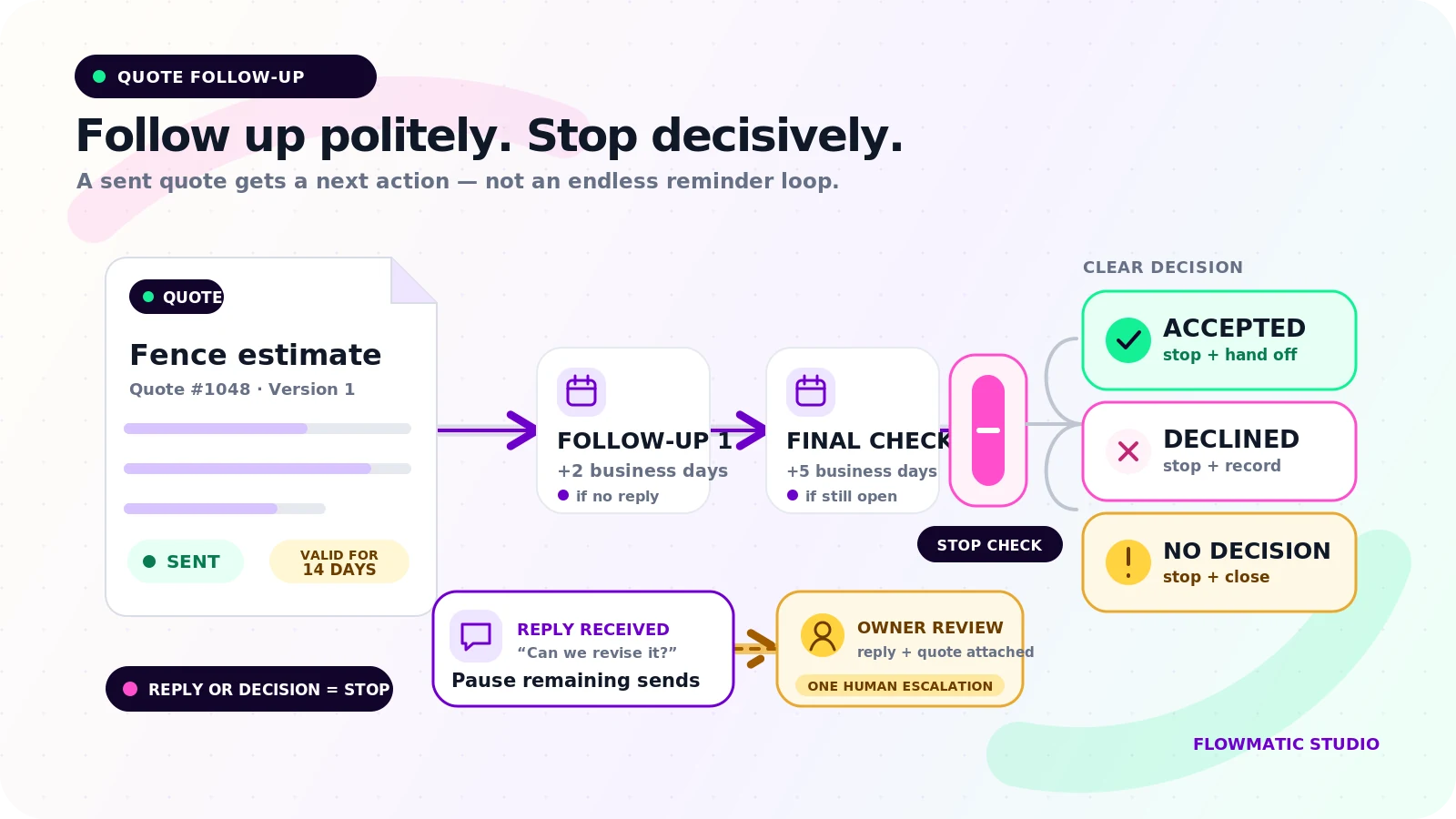
A sent quote sits in an awkward gap. The inquiry has been handled, but the prospect has not become a client. The estimate may be in an email thread while the next follow-up lives in someone's calendar or memory.
Quote follow-up automation gives that waiting period a clear structure. It records when the quote was sent, schedules a small number of useful follow-ups, notices responses, and asks a person to step in when judgment is needed. Its job is to reach a decision, not to keep nudging forever.
This workflow begins after a real estimate or proposal has been sent. The earlier inquiry-to-assignment path belongs in Small Business Workflow Automation: A Practical First System. The later agreement, payment, and kickoff path belongs in Client Onboarding Automation for Small Businesses.
Give every open quote a useful status
"Pending" does not tell the team why a quote is open or what should happen next. Use a small status model:
Quote sent: delivery recorded and first follow-up scheduledWaiting for decision: open, with no reply or acceptanceReply received: automation paused for owner reviewOwner follow-up: a person must answer, call, or revise scopeWon: accepted through the agreed confirmation methodLost: declinedClosed, no decision: validity date or follow-up limit reached
The record also needs an owner, sent date, valid-until date, next action, next-action date, last contact, and decision reason. Status shows where the quote is. Next action shows what happens now.
Set timing before writing messages
A same-day repair estimate and a commercial proposal should not share a schedule. Choose timing from the normal buying cycle and the expectation set when the quote was sent.
A modest local-service starting rule might be:
- Send the quote and state when the team will check back.
- If there is no reply, follow up after two business days.
- Send one final automated check-in five business days later.
- If there is still no decision, create an owner task instead of another message.
Those intervals are settings, not universal best practice. Respect the validity date, count business days, and use the business's chosen contact hours. Show the next scheduled action on the record.
A useful message can confirm receipt, offer to clarify one item, or ask whether the prospect wants to proceed, revise the scope, or close the quote. "Any update?" gives them more work and little reason to answer.
Detect replies and acceptance separately
Run a stop check immediately before every scheduled send. Do not rely on yesterday's status.
For email, match an incoming message using the conversation or thread, prospect address, and stored quote reference. Gmail supports mailbox-change notifications to a backend, so reply detection does not have to depend only on periodic polling.[1] Confirm the event options offered by the actual mail and quoting tools before choosing the connection.
A reply is not acceptance. "Can you change the materials?" should move the quote to Reply received and assign the owner. Use Won only for the acceptance event the business recognizes, such as approval in the quote tool, a signed proposal, or an explicit confirmation. An email open is not a decision.
Stop before the automation becomes a nuisance
Cancel remaining messages when a reply arrives, the quote is accepted or declined, the owner pauses automation, delivery fails, the prospect asks not to be contacted, a revision replaces the quote, the validity date passes, or the follow-up limit is reached.
Check again at send time. This prevents the worst version of quote automation: a cheerful reminder after the customer has replied or said no. When a revision is issued, close the earlier version and link it to the replacement so two schedules cannot run for the same job.
Escalate ambiguity to the owner
Create an owner task when the prospect asks a question, requests a discount, changes scope, sends an attachment, or replies in a way the system cannot classify safely. Include the quote link, full reply, last contact date, and due time. "Customer replied" is not enough context.
Silent quotes also need a human decision once the planned follow-ups finish. The owner can call, send a personal note, revise the offer, or close it. Recording that decision keeps the pipeline honest.
Use one CRM record or Google Sheet row
A lightweight CRM or disciplined Google Sheet can hold one record per quote. Track the quote ID and version, contact, service, amount, owner, status, sent and validity dates, follow-up count, next action, recent contact, acceptance method, close reason, and pause flag.
Google's Sheets API supports adding structured values after existing table rows.[2] For this workflow, create the quote once and update that same row as its status changes. Keep the detailed message log separately or link to it. Appending a fresh row for every email makes the operating view harder to trust.
Build an exception view
The owner needs a short work list, not a dashboard celebrating every email sent. Show only:
- Replies waiting for owner action
- Follow-ups due today
- Accepted quotes not handed to onboarding
- Failed or bounced messages
- Expired quotes
- Open quotes with no next action
- Revisions whose older version is still active
Every exception needs an owner and dated action. It should disappear when resolved.
Example: a small fencing contractor
After a site visit, a homeowner receives a fence replacement estimate. The record moves to Quote sent with a 14-day validity date and a follow-up due in two business days.
No reply arrives, so the system sends a short note confirming receipt and offering to explain material options. The homeowner asks to compare cedar with composite. Reply detection pauses the next reminder and creates an estimator task with the full message.
The estimator sends a revision, which closes the original quote. The homeowner later accepts through the proposal link. The replacement moves to Won, remaining reminders are cancelled, and the job is ready for the separate onboarding workflow.
Without a reply, the system would send one final check-in and ask the owner to call or mark Closed, no decision. It would not continue sending messages every few days.
Test normal and messy paths
Before using the workflow on live prospects, test acceptance before the first reminder, a reply minutes before a scheduled send, a decline, a bounce, pause and resume, a revised quote, two contacts replying, expiry before the next reminder, a failed CRM update, and the no-decision limit.
Confirm that each path ends in the right status, creates the right task, and cancels the wrong messages. A won quote should hand off once, not twice.
The finished system should answer four questions without opening the inbox: Which quotes are waiting? What happens next? Who replied? Which quotes reached a decision?
If estimates still depend on calendar reminders and inbox searches, request a Flowmatic workflow audit. We will map the post-quote handoff and identify the smallest reliable version to build first.
Sources
- [1] https://developers.google.com/workspace/gmail/api/guides/push — Configure push notifications in Gmail API
- [2] https://developers.google.com/workspace/sheets/api/reference/rest/v4/spreadsheets.values/append — Method: spreadsheets.values.append | Google Sheets
Fix the post-quote gap
Make every open quote's next action visible
Flowmatic can map the sent quote, follow-up timing, reply checks, owner escalation, and stopping rules before recommending a build.
Request a workflow audit