
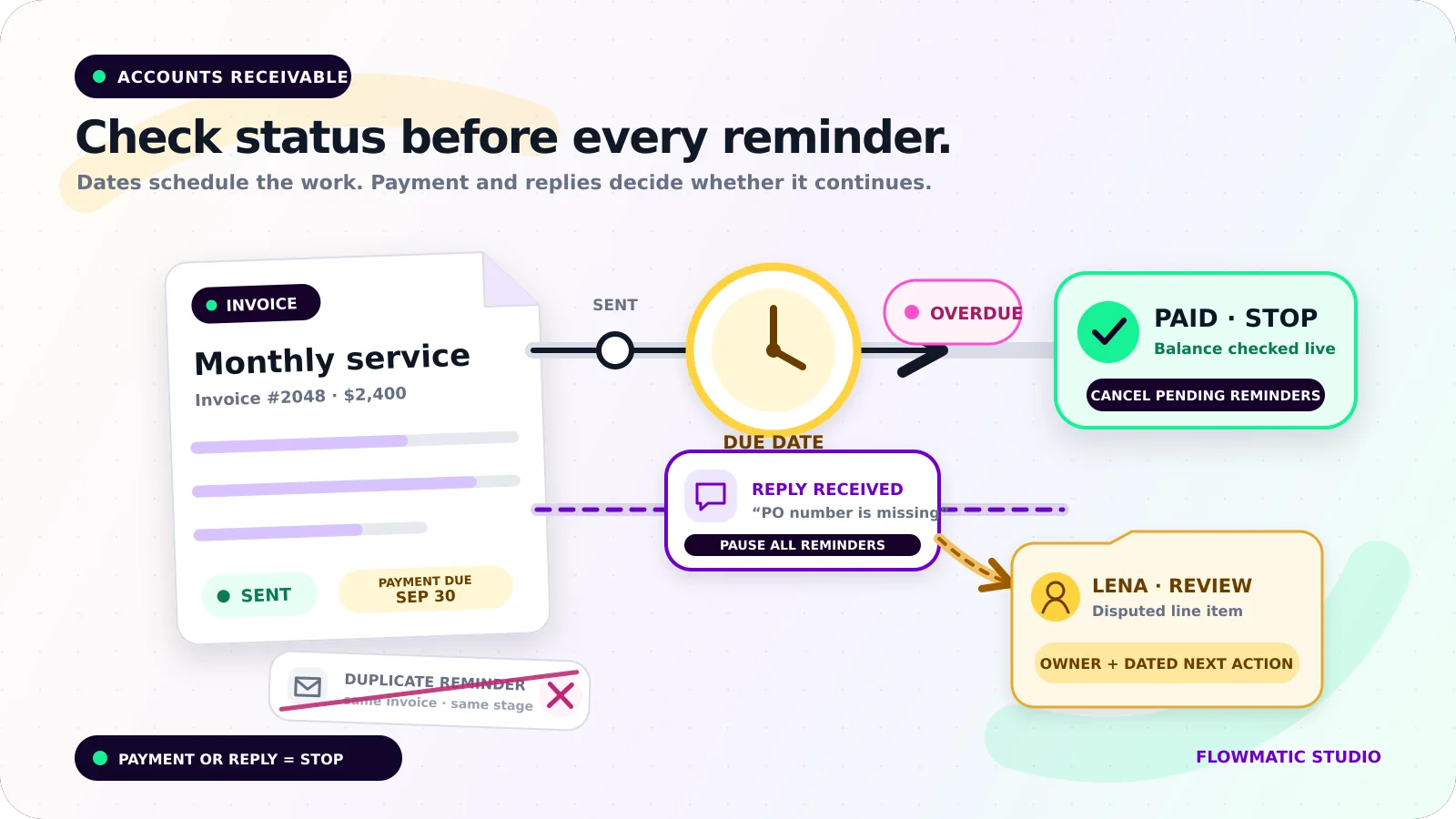
An invoice reminder should go out because the invoice is still payable, not simply because a date arrived.
That difference matters. A schedule alone can send a notice after payment, keep messaging a customer who disputed the amount, or send twice when two systems both think they own collections. Good invoice reminder automation combines timing with current status, delivery history, replies, and human ownership.
This workflow starts after an invoice has been issued. For the earlier operational handoffs, see the small-business workflow automation guide and the separate client onboarding automation guide.
Give each invoice an operational status
The accounting platform should remain the source of truth for the balance and formal invoice state. The automation can add the operating details needed for follow-up.
A practical record might use these statuses:
Issued: created, but delivery is not confirmedDelivered: sent successfully; reminder dates can be calculatedDue soon: eligible for a configured pre-due reminderOverdue: past due with a balance remainingReply received: reminders paused for reviewDisputed: an owner must resolve a question about amount, scope, or termsDelivery failed: the address or sending step needs attentionPaid,Void, orWritten off: closed
Track the invoice ID, customer, dates, outstanding amount, delivery result, reminder history, latest reply, owner, next action, and stop reason. Link to the invoice rather than copying sensitive payment data elsewhere.
Start the clock only after the invoice is sent
Creating a draft is not the same as delivering an invoice. Begin reminder eligibility only when the final invoice has been sent through the approved channel. If delivery fails, stop the sequence and create an exception for someone to correct the address or contact the customer another way.
Use timing that fits the payment terms. A company might configure a courtesy note three days before the due date, another on the due date, and overdue reminders three and seven days later. These are examples, not universal advice. Intervals depend on the agreed terms, customer type, invoice value, and collection process.
Some accounting tools already provide configurable reminders. QuickBooks Online, for example, lets users choose days before or after the due date and sends configured reminders only for invoices it considers unpaid and previously emailed.[1] Before adding a separate automation platform, check what the accounting system can already do and where its controls stop.
Synchronize payment status before every send
Immediately before a reminder goes out, fetch the latest invoice status and outstanding balance from the accounting or payment system. A daily reporting import is too stale for the final send decision.
Stripe, for example, documents invoice transitions such as open to paid, along with events including invoice.sent, invoice.paid, invoice.payment_failed, and invoice.voided.[2] The exact events vary by platform, so map the states your own system exposes instead of assuming every provider works the same way.
Use event updates and a send-time check. The final check protects against delayed webhooks, manual reconciliation, or a payment recorded moments before the message.
If the balance is zero or the invoice is paid, void, or otherwise closed, cancel all pending reminders and record why. A payment confirmation can belong to a separate customer communication, but it should not restart or extend the collection sequence.
Make replies a stop condition
A customer reply changes the job from scheduling to judgment. Match it using the thread, customer address, and invoice reference. Pause every pending reminder and assign the full conversation to a named owner.
Do not classify every reply as a dispute. A customer may ask for a copy, confirm a payment date, report a purchase-order problem, question a line item, or say the invoice went to the wrong person. Useful reply outcomes include Copy requested, Promise to pay, Disputed, Wrong contact, and Other owner action.
The owner decides whether to resume reminders, set a new action date, correct the invoice, or close the workflow. Automation should not negotiate scope, interpret contracts, or decide whether a disputed charge is valid. This is workflow guidance, not legal or accounting advice.
Prevent duplicate reminders
Choose one system as the reminder sender. If the accounting platform sends reminders, disable overlapping sends in the CRM or automation tool. If an external workflow sends them, document which native reminders must be turned off.
Give each planned reminder a unique key built from the invoice ID, invoice version, and reminder stage. Before sending, check the message log for that key. Record it atomically with the send attempt so a retried job cannot create a second message.
A revised or replacement invoice needs a new version. Close the old schedule and link it to the replacement. Never let two active records chase the same balance.
Stop the sequence when payment is recorded, the customer replies, delivery fails, an owner pauses it, the invoice is voided or replaced, the planned reminder limit is reached, or the record cannot be synchronized safely.
Build a short exception view
The useful accounts receivable view is not a count of emails sent. It is a work list showing what needs human attention:
- Overdue invoices with no next action
- Replies waiting for an owner
- Disputes without a resolution date
- Failed deliveries
- Payment or accounting sync failures
- Invoices whose status has not refreshed
- Duplicate schedules or multiple active versions
- Paused invoices with an expired review date
Every row needs an owner and dated action. Resolved items should leave the view automatically.
Example: a small commercial cleaning company
A cleaning company issues a monthly service invoice and sends it to the customer's accounts-payable contact. Delivery succeeds, so the workflow schedules the company's configured pre-due note and two overdue checks.
The pre-due note is sent after a live balance check. Three days after the due date, the customer replies that the purchase-order number is missing. The reply pauses both remaining reminders and creates a task for Lena, the office manager, with the invoice and full email thread.
Lena follows the company's correction process, sends the updated document, and sets a reviewed next-action date. When payment is recorded, the workflow closes the invoice and cancels the remaining reminder. It does not send another overdue message or start client onboarding.
Test the collisions, not only the happy path
Test a normal unpaid invoice, payment just before a scheduled send, partial payment, manual payment entry, reply before the first reminder, dispute, wrong contact, bounced email, voided invoice, revised invoice, duplicate webhook, retried job, sync outage, and two invoices for the same customer.
For each case, verify the current balance, status, message count, owner, next action, stop reason, and audit history. Run the first live batch with review enabled. Compare every proposed message with the accounting record before allowing unattended sends.
If invoice follow-up still depends on calendar notes and inbox searches, request a Flowmatic workflow audit. We will map the invoice states, payment sync, reminder rules, reply handling, and exception ownership before recommending a build.
Sources
- [1] https://quickbooks.intuit.com/learn-support/en-us/help-article/invoicing/send-invoice-reminders-automatically-manually/L84cQjpxo_US_en_US?uid=mezqf31v — Send invoice reminders automatically or manually in QuickBooks Online
- [2] https://docs.stripe.com/invoicing/integration/workflow-transitions — Stripe status transitions and finalization
Make invoice follow-up dependable
Map the statuses, stopping rules, and owner handoffs
Flowmatic can map your invoice states, payment sync, reminder rules, reply handling, and exception ownership before recommending a build.
Request a workflow audit