
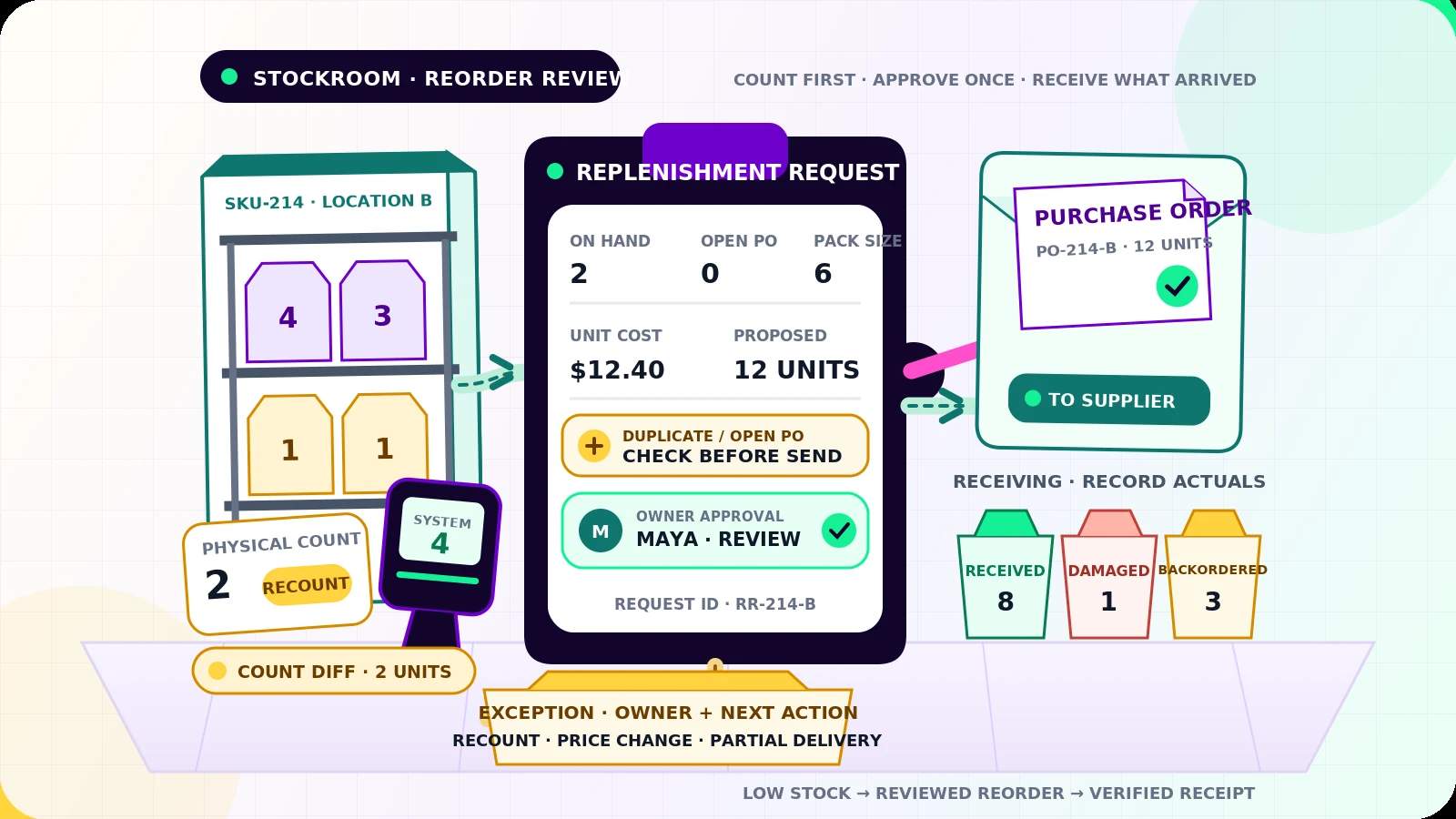
A shelf count drops below its threshold. That should start a review, not give software permission to spend money.
Inventory reorder automation for small businesses works best as a controlled handoff: detect a credible shortage, prepare a replenishment request, let the right person approve it, send one purchase order, and track what actually arrives. The automation handles routine checks and record updates. People keep control of buying decisions that carry uncertainty or financial risk.
For the broader foundation of triggers, ownership, and visible exceptions, read Flowmatic’s small-business workflow automation guide.
Set the scope at SKU and location level
Start with the products and locations where a stockout causes real disruption and the count is reasonably trustworthy. Do not switch on every catalog item at once.
Each rule needs a specific SKU, unit of measure, stocking location, reorder point, preferred reorder quantity or target level, supplier, expected lead time, and responsible buyer. A global count can hide a shortage in one shop while another location has excess stock. QuickBooks Enterprise, for example, supports different reorder points by site and notes that those site values do not automatically roll up into a global reorder point.[1]
Treat thresholds as maintained business inputs, not permanent truths. Seasonality, minimum order quantities, pack sizes, promotions, supplier reliability, and storage limits can all change the right quantity. Record who changed a rule, when, and why.
Check whether the stock signal deserves action
A low-stock alert is only as reliable as the count behind it. Square documents that point-of-sale sales can adjust stock automatically and that its retail product can send daily low-stock alerts.[2] Those features can surface a candidate, but they do not prove that the physical shelf, returns area, damaged stock, and open receipts all agree.
Before creating a request, check:
- the SKU and location match an active reorder rule
- the inventory reading has a recent timestamp
- pending sales, reservations, returns, adjustments, and transfers are represented
- a recent cycle count has not raised a variance
- the unit of measure matches the supplier pack size
Route stale counts, negative inventory, sudden unexplained drops, or unresolved count differences to a person. The safe action is to request a recount, not to compensate with a larger order.
Calculate a proposal, then check what is already coming
The workflow can propose a quantity using the approved rule, current usable stock, expected demand during lead time, safety stock, supplier pack size, and order minimum. Show the inputs beside the result so the buyer can understand it.
Then search open replenishment requests, draft and sent purchase orders, supplier acknowledgements, and inbound transfers for the same SKU and destination. A low-stock event may fire again while yesterday's order is still in transit. Use a stable key such as SKU + location + reorder cycle and link every retry to the existing request.
Do not silently combine suppliers, destinations, currencies, or delivery dates. If an open order only covers part of the shortage, show the remaining gap and the existing order together.
Put supplier context in the approval view
A buyer should see the proposed quantity, current and threshold stock, recent count time, open incoming quantity, preferred supplier, quoted unit cost, prior unit cost, currency, minimum order, pack size, lead-time assumption, expected arrival, and total value.
Supplier data goes stale. A missing quote, expired price, changed bank details, old lead time, or unavailable item should stop the handoff. Price increases beyond the business's tolerance also need review. Never let an inventory workflow change supplier payment details.
Define approval ownership in advance. A store manager might approve routine orders under a set value, while an owner reviews high-value orders, unusual quantities, new suppliers, substitutions, or expedited freight. Name a backup approver and record the decision, time, and reason.
Create a request or purchase order, not a blind purchase
The first system write should usually be an internal replenishment request or draft purchase order. Only an approved record should become a sent purchase order.
Include a durable request ID, supplier and delivery location, SKU, description, quantity, unit and total cost, currency, expected date, terms reference, approver, and source alert. Square's purchase-order workflow uses vendor, delivery location, expected date, item, quantity, and unit cost, then supports partial receiving.[3] That is a useful baseline for a small system.
Grant the automation only the permissions it needs. It may read inventory, create a draft, and update status without having authority to edit vendors, change payment details, approve its own request, or send every order. Separate requester, approver, and sender roles where the business has enough staff.
For supplier handoff, send from an approved business account or submit through the supplier's accepted channel. Save the sent document, recipient, time, and supplier acknowledgement. A generated PDF in a folder is not proof that the supplier received or accepted the order.
Keep receiving separate from ordering
An approved purchase order records what the business agreed to buy. Receiving records what physically arrived. Shopify explicitly separates the commercial purchase order from the linked inventory transfer used for shipments and receiving.[4]
When goods arrive, record the purchase-order ID, destination, received quantity, rejected or damaged quantity, receiver, time, and any lot or serial details the business requires. Partial deliveries should leave the balance open. A supplier backorder needs a revised expected date, owner, and next action. Do not increase available stock for units that are missing, rejected, or still in transit.
Close the request only when every line is received, canceled with a reason, or moved to a tracked backorder. Keep any invoice matching or payment process separate unless the accounting team has defined and approved that workflow.
Make every stop visible
Use a small state model: Alert raised, Needs count review, Proposed, Awaiting approval, Approved, Sent, Partially received, Received, Backordered, Canceled, and Exception.
The exception queue should show uncertain counts, stale signals, duplicate or open-order matches, unusual quantities, price changes, stale supplier data, high-value orders, missing approval, failed supplier delivery, and receiving discrepancies. Each item needs a named owner, reason, source links, first-failure time, and dated next action.
Decision support is the goal. Autonomous purchasing is not. Any uncertainty about stock, quantity, supplier, price, or value must pause the workflow for human review. A weekly summary can follow the validation and drill-down patterns in Flowmatic’s weekly KPI reporting automation guide, but it should never replace the live exception queue.
Test the failure paths before launch
Test a normal reorder, stale count, wrong location, negative stock, pack-size mismatch, open purchase order, partial inbound quantity, duplicate alert, unusual demand spike, price increase, expired quote, supplier change, high-value total, missing approver, send timeout, supplier rejection, partial delivery, damaged goods, backorder, over-delivery, and two people receiving the same shipment.
For each case, verify the request count, purchase-order count, supplier message, approval history, inventory movement, final state, owner, and next action. Begin with draft-only creation for a small SKU group. Expand only after the team can recover from every tested failure without placing a duplicate order or overstating available stock.
If reordering still depends on someone checking shelves and searching old supplier emails, request a Flowmatic workflow audit. We will map your stock signals, approval limits, purchase-order handoff, receiving states, permissions, and exception ownership before recommending a build.
Sources
- [1] https://quickbooks.intuit.com/learn-support/en-us/help-article/feature-preferences/set-advanced-inventory/L2IZIdPVM_US_en_US — Set up advanced inventory in QuickBooks Enterprise
- [2] https://squareup.com/help/us/en/article/7746-tracking-your-inventory-with-square-for-retail — Track your inventory | Square Support Center
- [3] https://squareup.com/help/us/en/article/8258-create-purchase-orders-with-square-for-retail — Create and manage purchase orders | Square Support Center
- [4] https://help.shopify.com/en/manual/products/inventory/purchase-orders/receiving-inventory — Receiving inventory from a purchase order | Shopify Help Center
Replace shelf-checking and supplier-email searches with one controlled handoff
Map stock signals, approvals, purchase orders, receiving, and exceptions
Flowmatic can map your reorder workflow before recommending a build, including count checks, duplicate controls, approval limits, supplier handoff, receiving states, permissions, and exception ownership.
Request a workflow audit