
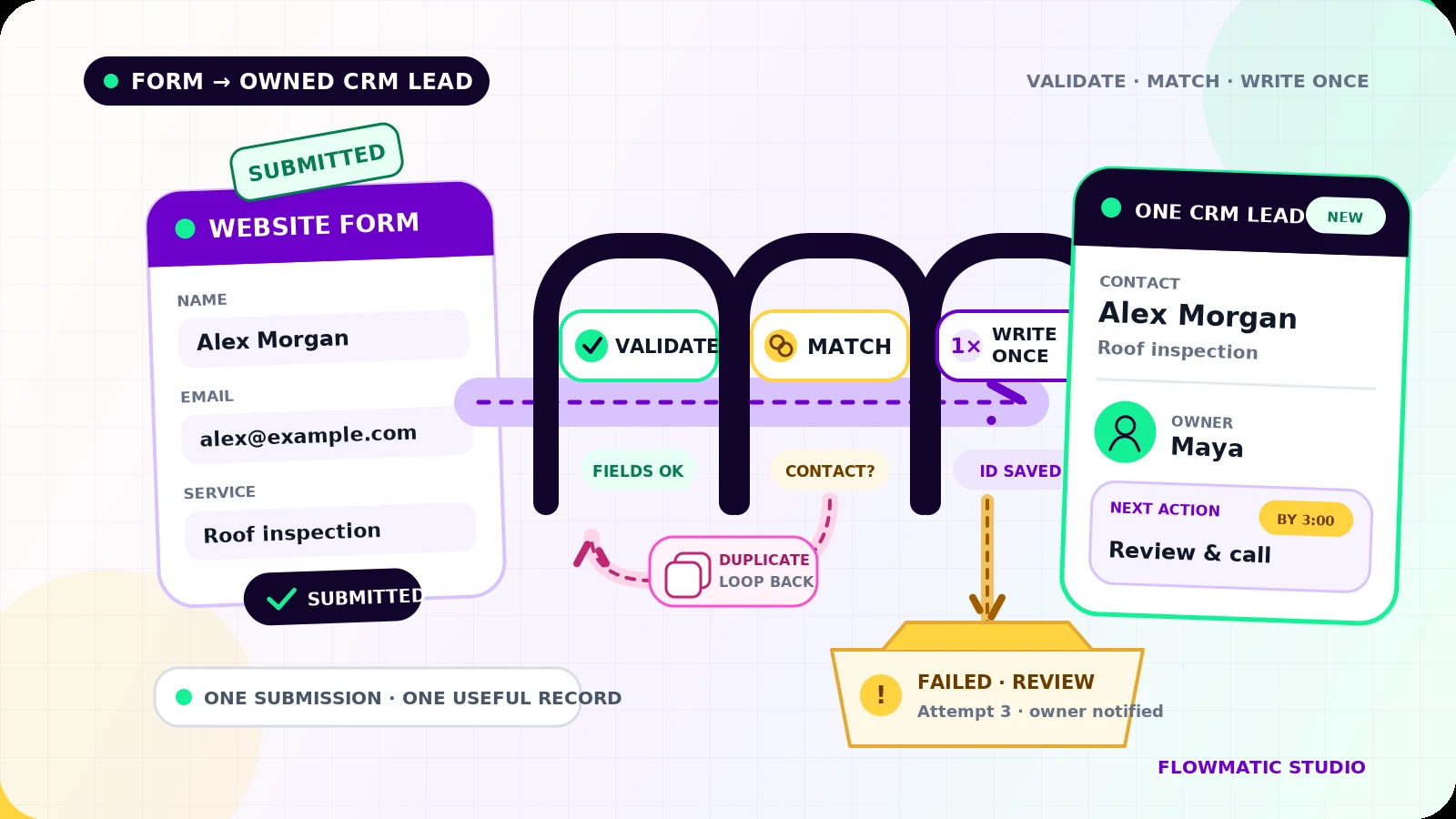
A form can display “Thank you” while the lead never reaches the person expected to respond. It can also create three CRM records after a visitor retries a slow submission. Both failures look harmless from the website.
Reliable form to CRM automation has a narrow job: turn one valid submission into one usable record, assign a dated next action, send an appropriate acknowledgement, and make any failure visible. This article stays inside that handoff. For the broader path from lead capture through follow-up, read Flowmatic’s small-business workflow automation guide.
Define the record before connecting tools
Start with a field map, not an automation canvas. List each form field, its CRM destination, format, required status, and fallback. Keep source data such as page URL, campaign values, submission time, form version, and the form provider’s submission ID.
A practical lead record might include:
- name, email, phone, and preferred contact method
- service requested, location, and the visitor’s message
- original lead source and landing page
- consent selection, notice version, and timestamp
- owner, status, next action, and due time
- submission ID, processing state, and failure reason
Do not squeeze everything into a notes field. Fields used for routing or reporting need consistent values. Map a form choice such as Roof repair to the CRM’s exact service value. Preserve the visitor’s original message separately instead of “cleaning” it into a category and losing useful detail.
Validate before writing to the CRM
Browser validation helps visitors correct obvious mistakes, but the receiving workflow should validate again. Required values can still arrive blank or malformed through an old form, direct request, broken integration, or changed field name.
Check that the payload belongs to the expected form, required fields are present, email and phone values are plausible for the business’s use, selection values are allowed, and text stays within CRM limits. Normalize predictable details such as surrounding spaces and phone formatting. Do not invent missing data.
Route an incomplete but recoverable lead to review with the raw submission attached. Reject obvious spam or unsafe payloads according to a written rule. A bad record should not silently become a good-looking one.
Separate deduplication from idempotency
These controls solve different problems.
Deduplication asks, “Do we already know this person?” A normalized email address is often the first match key, with phone number as a careful secondary check. HubSpot, for example, automatically deduplicates contacts by email address and updates an existing contact when a form submission uses that address.[1] Your CRM may behave differently, so test its actual create and update rules.
Idempotency asks, “Have we already processed this exact submission?” Store a unique submission or event ID before creating the CRM record. If the same ID arrives again, return the prior result instead of creating another lead, task, or acknowledgement. Stripe’s webhook guidance uses the same pattern: log processed event IDs and skip events already handled.[2]
A returning customer may be one contact but a new opportunity. Match the contact first, then decide whether to update an open inquiry or create a new lead linked to that contact. Do not use “same person” and “same request” as interchangeable rules.
Create ownership as part of the write
A CRM record without an owner and next action is stored data, not a handoff. The successful path should leave the lead in a useful state such as:
New website lead / Maya / Review request and call / Today 3:00 p.m.
Route by a small rule set the team understands: service, location, language, or a default owner. If the rule cannot select someone, assign a named fallback and add the lead to an unassigned exception view. Never let a shared inbox stand in for ownership.
Create the owner task only after the CRM record exists, and link the task to that record. Store the resulting record and task IDs against the submission so a retry can find them.
Keep acknowledgement separate from marketing consent
The acknowledgement should confirm receipt, identify the business, and set an honest expectation. It should not quietly turn a service inquiry into a promotional sequence.
Thanks for contacting Northside Roofing about a roof inspection. Maya will review your request and reply by the end of the next business day.
Record what the visitor agreed to, using the exact notice version and time. If the business asks for marketing consent, use a separate, unticked choice rather than bundling it into the required inquiry submission. The UK Information Commissioner’s Office says consent should use a positive opt-in, remain separate and specific, and be recorded with when, how, and what the person was told.[3] Rules vary by country and channel, so the business should review its own lawful basis and messaging policy.
Send the acknowledgement only after the lead and owner task are safely recorded. If sending fails, keep the lead active and create a visible communication exception. Do not delete the lead because the courtesy message failed.
Retry without hiding failures
Temporary CRM or email outages should trigger limited retries with increasing delays. Each retry must use the same submission ID and check for an existing CRM record before writing again.
After the retry limit, move the item to a failure queue. Show the submission time, form, contact detail, failed step, error summary, attempt count, record ID if one exists, and named resolver. Alert the resolver, but keep the queue as the durable work list. An alert can be missed; an open exception remains visible.
Use clear states such as Received, Validated, CRM written, Owner task created, Acknowledged, and Failed - review required. This makes partial success obvious. A lead stuck after CRM written needs a task, not another contact record.
Test the handoff like a customer would
Before launch, submit realistic cases through the live form and confirm the CRM result, task, acknowledgement, and logs. Test:
- a new contact and a returning contact with a new request
- double-clicks and the same payload delivered twice
- missing fields, changed form values, and very long messages
- CRM timeout before and after record creation
- task creation failure and acknowledgement failure
- no matching owner, withdrawn marketing consent, and a manual replay
For each case, count the contacts, leads, tasks, and messages created. Then confirm someone can find and resolve every failed item without opening server logs.
Flowmatic’s real-estate lead workflow shows a live example of form capture feeding a structured follow-up process. If your website forms still rely on inbox notifications or manual copying, request a Flowmatic workflow audit. We will map the fields, duplicate rules, ownership, acknowledgement, and failure path before recommending a build.
Sources
- [1] https://knowledge.hubspot.com/records/deduplication-of-records — Deduplicate records in HubSpot
- [2] https://docs.stripe.com/webhooks — Receive Stripe events in your webhook endpoint
- [3] https://ico.org.uk/for-organisations/uk-gdpr-guidance-and-resources/lawful-basis/a-guide-to-lawful-basis/consent — Consent | ICO
Make every form handoff visible
Map the fields, duplicate rules, ownership, and failure path
Flowmatic can map your form-to-CRM handoff before recommending a build, including validation, idempotency, ownership, acknowledgement, and exception handling.
Request a workflow audit