
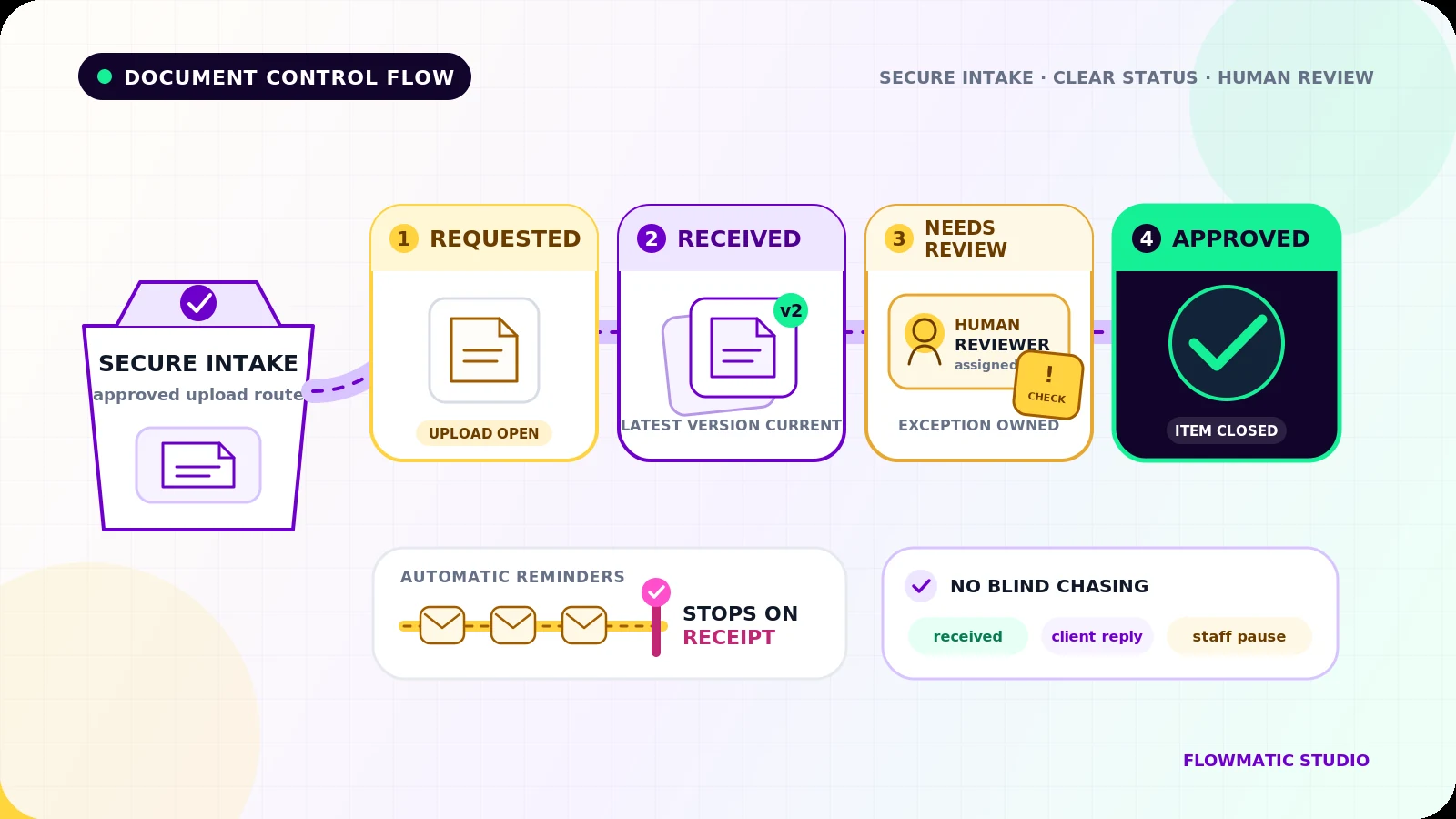
A client uploads a file. The team receives an email. Yet nobody can quickly answer whether it is the right document, the latest version, or one of five items still missing.
That is the gap client document collection automation should close. The goal is not simply to create a shared folder or send more reminders. It is to maintain a clear checklist for each client, confirm what arrived, route uncertain files to a person, and stop chasing as soon as the request is resolved.
This workflow begins after you know which documents are required. For the wider process around agreements, payments, intake, and kickoff, see Flowmatic’s client onboarding automation guide.
Set secure intake boundaries first
Choose one approved upload route instead of accepting sensitive files across personal email, chat, and public links. The right setup depends on the documents, your contracts, your location, and any industry requirements. Review those requirements with qualified advisers rather than treating a software feature as legal compliance.
At a practical level, define:
- which document types the business will request
- who may upload, view, review, replace, and delete them
- allowed file types and size limits
- where files are stored and backed up
- how long upload links and staff access remain active
- the retention or deletion rule after the work finishes
Prefer an authenticated portal or a limited upload-only request when the risk warrants it. Microsoft documents that its OneDrive and SharePoint file-request links let recipients upload without viewing, editing, deleting, or downloading the folder’s contents.[1] Anyone with the link can upload, however, so that feature still needs an appropriate link-sharing policy.
Do not build a homemade uploader without security review. OWASP recommends layered controls including allowlisted extensions, file-type validation, generated filenames, size limits, authorized access, storage outside the webroot, and malware scanning where available.[2]
Turn requirements into a per-document checklist
A folder answers “What files exist?” A checklist answers “What is still needed?”
Create a document-requirement record for every expected item. A bookkeeping firm might request a prior-year report, bank statements for named months, payroll summaries, and sales-tax filings. Each item should include:
- document type and plain-language instructions
- client and case ID
- due date and request date
- current status
- current file version and storage reference
- reviewer and review deadline
- latest client message and next action
- reminder count, next reminder time, and stop reason
Keep the document tracker separate from the actual file. Store a controlled reference to the file rather than copying sensitive content into a CRM note or spreadsheet.
Use statuses that control the next action
Track each document independently. One case-level label such as Incomplete cannot explain what the client or reviewer must do.
A useful status set is:
Requested: the client has clear instructions and an active upload routeReceived: a file arrived and passed basic intake checksNeeds review: identity, quality, date range, or relevance is uncertainNeeds replacement: the reviewer has named a specific problemApproved: the item satisfies the business checklistNot required: a person recorded why the item does not apply
The case can become Ready only when every required item is Approved or Not required. Uploading a file should never mark it approved automatically.
Match uploads without losing versions
Give every upload an immutable event ID and retain the provider’s file ID when available. On a retry, check that ID before creating another tracker event or confirmation.
Then match the upload to the client and requested document type. Use a structured upload field or request-specific link where possible; filenames alone are unreliable. If the match is uncertain, quarantine the file from normal processing and create a human review task.
Do not overwrite the previous file silently. Record a new version with its upload time, uploader, checksum or provider file ID, and relationship to the earlier version. Mark one version as current while preserving the audit history according to the approved retention rule. A duplicate binary file can be acknowledged without creating another review task. A changed file should become a new version and return to Received or Needs review.
Confirm receipt, not acceptance
After a successful upload and safe record creation, send a receipt that names the item and explains what happens next:
We received “March bank statement” for the Carter file. It is queued for review. We will contact you if anything is missing or unclear.
This message confirms transport, not approval. If scanning, storage, or tracker creation fails, do not send a reassuring confirmation. Keep the upload in a recoverable queue and alert an owner.
Remind only for open items
A reminder job should query current checklist status immediately before sending. Include only items still marked Requested or Needs replacement, with one clear upload route and a realistic deadline.
Stop pending reminders when the item is received, approved, marked not required, paused by staff, or superseded by a revised request. Also stop when the client replies, the upload link expires, delivery fails, the reminder limit is reached, or the workflow cannot verify current status.
A reply should pause automation because it may contain context: the document does not exist, the request is unclear, another person holds it, or the deadline is impossible. Assign that conversation to a named owner rather than continuing the sequence.
Make exceptions a human work queue
Automation can verify expected format, size, duplicate identity, and whether a file arrived. It should not decide that a blurry statement is acceptable, interpret an unusual legal document, or resolve a name mismatch without a person.
Create one visible queue for unmatched uploads, unsupported file types, suspected malware, unreadable pages, wrong date ranges, multiple possible clients, replacement disputes, expired links, failed notifications, and cases stuck beyond their review deadline. Every exception needs an owner, reason, and dated next action.
Close access and recover safely
When the checklist closes, disable request links that are no longer needed and review external and staff access. Google Drive, for example, lets owners restrict general access, remove a person’s access, and—on eligible work or school accounts—set access expiration.[3] Test the exact behavior of your chosen platform, especially inherited folder permissions.
Define retention by document category and business obligation, not by whatever the storage provider keeps by default. Record the policy and deletion outcome without promising that a workflow alone satisfies every privacy or regulatory duty.
Finally, test failed uploads, duplicate events, incorrect matches, replacements, staff absence, storage outages, expired links, notification failures, and a client reply just before a reminder. A recoverable workflow should retry safely, preserve the original event, avoid duplicate messages, and leave unresolved work visible.
If document chasing still depends on inbox searches and memory, request a Flowmatic workflow audit. We will map the checklist, secure intake boundary, reminder stops, review handoffs, and failure queue before recommending a build.
Sources
- [1] https://support.microsoft.com/en-us/onedrive/create-a-file-request — Create a file request | Microsoft Support
- [2] https://cheatsheetseries.owasp.org/cheatsheets/File_Upload_Cheat_Sheet.html — File Upload Cheat Sheet | OWASP
- [3] https://support.google.com/drive/answer/2494893 — Stop, limit, or change sharing | Google Drive Help
Stop chasing documents from memory
Map the checklist, secure intake, reminder stops, and review queue
Flowmatic can map your document collection workflow before recommending a build, including status rules, receipt confirmations, version handling, reminder stops, and human exceptions.
Request a workflow audit